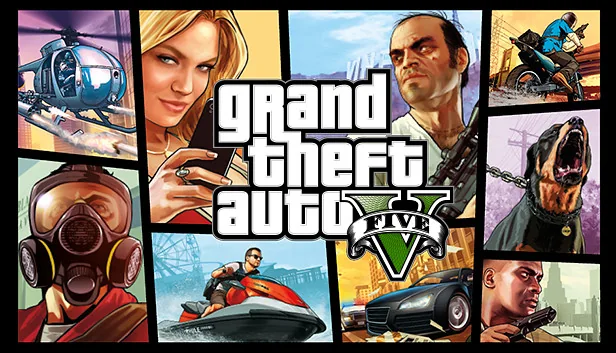

Before a large download, check the edition, your PC specifications and the account linked to the game. GTA V on PC has Enhanced and Legacy editions. The following checks help avoid unnecessary reinstalls and confusion over progress.
1. Check the edition in your library
Read the full title in your store or launcher: Enhanced and Legacy have different requirements. The Rockstar table checked for this guide requires a 105 GB SSD for Enhanced and lists 125 GB of storage for Legacy. These are reference requirements, not a promise about every future download size.
Compare your CPU, graphics card, memory and operating system with the official table too. Minimum requirements do not guarantee a high frame rate. Leave room for updates and check which drive the installer has selected.
2. Separate installation from character migration
Moving GTA Online progress from Legacy to Enhanced on PC is a separate action. Official help says Legacy progress is retained, but later progress is not synchronized between the two editions. This procedure does not support moving between PC and consoles.
Read the profile name and character selection screen before confirming. Do not treat migration as a test button. Decide where you intend to keep playing and review eligibility restrictions first; not every profile qualifies.
3. Make the first launch easy to diagnose
Let the download and updates finish, then launch normally through your platform. For diagnosis, begin without random mod bundles so you can distinguish the base installation from additional changes.
Record how far you get: launcher, splash screen, menu or mode loading. If the issue repeats, this sequence helps identify the right support article. Avoid changing five settings together; otherwise it becomes difficult to tell what affected the result.
4. Verify files before reinstalling everything
In Rockstar Games Launcher, open Settings, select the installed game and run Verify Integrity. File verification can resolve some installation problems. If you use Steam or another platform, follow its own verification instructions.
Rockstar’s general help also recommends checking game and driver updates. Work through the simpler steps in order, then repeat the same launch attempt. Do not delete saves or system files for an unspecified “performance boost.”
Source: Rockstar — Verify files in the Launcher, Rockstar — General PC troubleshooting
5. Account for BattlEye in GTA Online
Rockstar states that connecting to official GTA Online PC servers requires BattlEye to start correctly. Instructions intended for a third-party server should not automatically be applied to official Online play. Start with the relevant support page when an error appears.
An exact error message is more useful than “GTA V keeps crashing.” Keep the wording, game edition, store and steps already tried. Those details help support and prevent you from repeating the same troubleshooting cycle.
Quick checklist
- Check whether the library entry is Enhanced or Legacy.
- Compare specifications and available storage.
- Read migration conditions before confirming.
- Finish updates and test a normal launch.
- Record errors and verify files if needed.
Sources
- Rockstar — GTA V PC system requirements
- Rockstar — Legacy to Enhanced profile migration
- Rockstar — Verify files in the Launcher
- Rockstar — General PC troubleshooting
- Rockstar — BattlEye troubleshooting
Interfaces and rules can change. Check the official pages above for current requirements.