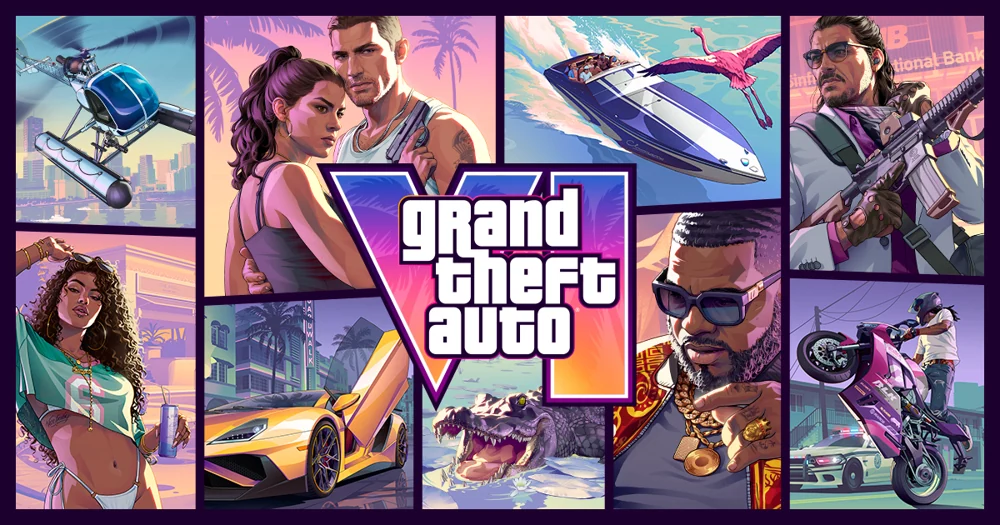

Digital GTA VI pre-orders can already be downloaded. Rockstar’s FAQ calls for up to 212 GB of available space, depending on the device. Check the free space on the drive selected for the install and the size your own console displays.
Check your PlayStation 5
Sign in to the account that owns the pre-order, open your game library and select GTA VI. Use the download option if offered and check the queue. For automatic downloading, Rockstar specifies that auto-downloads must be enabled and the PS5 must be on or in Rest Mode. A fully shut-down console cannot download the game overnight.
Source: Rockstar — pre-load FAQ, console settings and free space
Check your Xbox Series X or S
Find the title in the library of the account that placed the order. Check the installation queue and available storage. For automatic downloading, enable automatic updates. Rockstar specifies that the console should be on or in Sleep mode. If the installation stops, read its error message and check the space on the selected storage device.
Source: Rockstar — pre-load FAQ, console settings and free space
Check the dates if an older article says November 12
Downloads opened on November 10: at local midnight for PS5, and globally at 00:00 GMT for Xbox. Rockstar’s November 10 Newswire announcement confirms availability. By November 12 both windows are open. An empty queue calls for an order, account and download-settings check. The playable unlock is scheduled for local midnight on November 19.
Source: Rockstar — pre-load FAQ, console settings and free space, Rockstar Newswire — pre-load announcement, November 10, Rockstar — regional release times, updated November 3
Quick checklist
- Check free space on the installation drive
- Find the order in the correct account
- Check the download queue
Sources
- Rockstar — pre-load FAQ, console settings and free space
- Rockstar Newswire — pre-load announcement, November 10
- Rockstar — regional release times, updated November 3
Interfaces and rules can change. Check the official pages above for current requirements.
More guides for this game
- GTA VI release date, launch platforms and local unlock time
- GTA VI Standard vs Ultimate: what each edition and the box contain
- Who are Jason and Lucia in GTA VI and what brings them together?
- GTA VI radio, podcasts and music: what you can listen to on foot
- GTA VI frame rate on consoles and what PS5 Pro adds
- How to play GTA VI on Xbox One and when cloud streaming opens
- GTA VI map guide: six places Rockstar has shown in Leonida
- Does GTA VI have Russian voice acting? Subtitles and menus on PS5 and Xbox
- GTA VI animals: what Study does in the dog encounter
- Six GTA VI cars made it onto Miami’s streets. Here’s how to tell them apart
- The Florida road trips behind GTA VI
- What happens if you take a different turn in a GTA VI mission?
- How sleep affects Jason and Lucia in GTA VI
- What do you keep in your personal car in GTA VI?
- Can you repair a car at a GTA VI gas station?
- What happens to your money in GTA VI?
- Can you fast travel with Ryde Me in GTA VI?
- Can you play the whole of GTA VI in first person?
- How to read the oxygen meter in GTA VI’s diving footage
- Will GTA VI feel more like GTA IV or GTA V behind the wheel?
- How food and training change Jason and Lucia in GTA VI
- Can you buy a house in GTA VI story mode?
- Whose radio traffic does Cal Hampton listen to in GTA VI?
- Who runs Brian Heder’s boatyard operation in GTA VI?
- Who owns Jack of Hearts in GTA VI, and how does it fund a studio?
- Who signed Real Dimez in GTA VI, and did the duo already have a hit?
- What does Raul Bautista look for in a crew in GTA VI?
- What is Tisha-Wocka in GTA VI, and what is it known for?
- Which GTA VI screenshot shows the boat party in the Keys?
- Which signs light up Port Gellhorn at night in GTA VI?
- Who employs Ambrosia’s residents in GTA VI, and where do the bikers fit in?
- Where does Rockstar show off-roading and kayaking in Mount Kalaga?
- Can Jason or Lucia post on Snapmatic in GTA VI?
- Can it rain in one part of Leonida while another stays dry?
- What do hollow wanted stars mean in GTA VI?
- Which vehicles share Lucia’s off-road race in GTA VI?
- Can you keep the fish you catch in GTA VI?
- How much of GTA VI Trailer 2 is gameplay?
- Where can you get official GTA VI wallpapers without the logo?
- What is GTA VI’s Macca & Friends and where can you watch the teaser?
- Did the GTA VI trailer’s alligator really walk into a Florida store?
- Which news bulletins flash past in the first GTA VI trailer?
- Did my GTA VI pre-order go through on PlayStation Store?
- What if my PS5 GTA VI code says it has already been used?
- Can a second profile play GTA VI on the same PS5?
- Bought GTA VI but see a padlock on PS5? How to restore its license
- Can I use a DualShock 4 to play GTA VI on my PS5?
- Can two people play GTA VI’s story as Jason and Lucia?
- How can Jason and Lucia arrange to meet in GTA VI?
- Can pedestrians in GTA VI tell when you’re eavesdropping?
- What does Focus highlight in GTA VI?
- Do you need both characters to rob a store in GTA VI?
- How do I get into the GTA VI festival in Miami on November 21?
- Which GTA VI vinyl should I get for the Justice score?
- Who voices Jason and Lucia in GTA VI, and which actor has confirmed a role?
- Where can I watch the full GTA VI Extended Look without Netflix?
- Where is the real Welcome to Vice City rooftop sign in Miami?
- How do I set up GTA VI’s 3D audio for headphones or TV speakers?
- How do I turn down DualSense vibration for GTA VI on PS5?
- How do I make L2 and R2 easier to press in GTA VI?
- How do I turn down the DualSense speaker in GTA VI?
- How can I magnify small text on the GTA VI screen on PS5?
- Is GTA VI set in 1986 like GTA: Vice City?
- Is Tommy’s Ocean View Hotel back in GTA VI?
- What do the airport signs in GTA VI actually say?
- Where can you see the cruise ship and cargo docks in GTA VI?
- What is the NINE1NINE plane banner advertising in GTA VI?
- How many people worked on GTA VI?
- Who painted the murals in GTA VI?
- What are Jason and Lucia wearing in the Dazed GTA VI portraits?
- How does GTA VI’s phone differ from the one in GTA V?
- Why did Rockstar revisit GTA IV when shaping GTA VI’s satire?
- Where do I claim the GTA+ month that comes with digital GTA VI?
- Do I keep my GTA Online car when the GTA VI bonus month ends?
- Can I use my GTA VI bonus month to play GTA+ games on my phone?
- When does the 1995 Grotti Cheetah appear in GTA VI Ultimate?
- Which GTA VI shop builds donks and which one handles off-road mods?
- How do you shoot a basketball in GTA VI?
- Can Jason and Lucia play mini golf together in GTA VI?
- Can you play a tennis match in GTA VI?
- Which haircuts can you get at home in GTA VI?
- Can you ride the street scooters in GTA VI?
- Does Jason break Lucia out of prison in GTA VI?
- Is the man in GTA VI’s Ammu-Nation commercial Phil Cassidy?
- What is the Thrillbilly Mud Club logo in GTA VI Trailer 1?
- Where was the real chase compared to GTA VI’s PlanetLeonidaMan clip filmed?
- Where can you see the Grassrivers airboat in GTA VI footage?
- What do the angel and devil mean in GTA VI’s Criminal Profile?
- Can a police dog catch Jason during a GTA VI pursuit?
- Can you ride buses and trains as a passenger in GTA VI?
- How many bird species can you log with binoculars in GTA VI?
- Which cars can Jason and Lucia hotwire at the start of GTA VI?
- How do I hide PS5 screenshots from parts of GTA VI I haven’t played?
- How do I mute r/GTA6 while playing through GTA VI?
- Which TikTok keywords should I filter before playing GTA VI?
- How can I stop YouTube recommending a GTA VI walkthrough channel?
- How do I mute GTA VI on X for seven days?
- Can a family member start GTA VI under their own Xbox profile?
- Can I continue my GTA VI save on another Xbox?
- How can I stream GTA VI from my own Xbox to my phone?
- How can I record a whole GTA VI mission on Xbox?
- How do I copy my installed GTA VI files to a second Xbox over the LAN?
- What does a grey car icon mean on the GTA VI radar?
- Why can’t Jason steal a car outside his friend’s club in GTA VI?
- Does one GTA VI day really last 144 minutes?
- Can you really enter 70% of the buildings in GTA VI?
- Can Jason and Lucia get married in GTA VI?
- What time does the official GTA VI YouTube launch stream start?
- Where can I download the printable Leonida map for GTA VI?
- Does the GTA VI Goodtime State collector’s box come with a game code?
- Where can I visit the GTA VI Vice City display in London?
- Why did the ESRB rate GTA VI Mature 17+?
- Which Black Sabbath song is in GTA VI’s Chamber preview?
- Which version of Midnight Sun plays on Flash FM in GTA VI?
- Who sings the bachata duet in GTA VI’s Cocoteo FM preview?
- What is the Asake track in GTA VI’s AfroBank FM preview?
- Who sings The Conversation on GTA VI’s Back Country Radio?
- Who gets into the backyard wrestling ring in GTA VI?
- Who is Jason playing pool with in GTA VI?
- Can Jason and Lucia go to the zoo together in GTA VI?
- Where is the metal detector on the GTA VI beach?
- Did Rockstar show a jet ski race in GTA VI?
- Why is my PS5 GTA VI clip missing from PS App?
- How do I keep my voice and party chat out of GTA VI clips on PS5?
- How can a friend watch GTA VI on PS5 and take the controls?
- How do I wake my PS5 to play GTA VI on PS Portal?
- How do I move a 4K GTA VI clip from PS5 to my editing computer?
- Why is GTA VI’s Wonder Whale compared to a Florida lobster?
- Why is there a gap in the bridge in GTA VI Trailer 1?
- Which GTA VI arena has the Narcos sign on its facade?
- How do the lifeguard towers identify South Beach in GTA VI?
- Which Miami beach resembles Jason’s outdoor gym in GTA VI?
- Why is Xbox only charging me for my GTA VI pre-order now?
- Can I cancel GTA VI if my PS5 has already started the pre-load?
- Where is the tracking number for my Rockstar Store GTA VI box?
- Which country should a PlayStation gift card for GTA VI be from?
- Which Ukrainian console store offers a digital GTA VI pre-order?
- What crosses the road in front of the scooter in GTA VI?
- Which GTA VI screenshot shows a diver beside a sea turtle?
- Which big cat did viewers spot beside the deer in GTA VI?
- Why does GTA VI’s Leonida have rhesus monkeys?
- When does the flamingo flock take off in GTA VI Trailer 1?
- Which garage holds the ’55 Vapid Stanier in GTA VI?
- Which GTA VI pack has Lucia’s red dress and Jason’s pastel suit?
- Where is the pink-and-blue Shitzu Squalo docked in GTA VI?
- What does Wyman want you to do with project cars in GTA VI?
- Where are the FAILE tattoos for Lucia and Jason in GTA VI?
- How do I copy GTA VI back from a USB drive to PS5?
- How do I install GTA VI directly on my second PS5 SSD?
- How can I start downloading GTA VI to my PS5 from my phone?
- Why does GTA VI download slowly while another Xbox game is running?
- How long will the rest of my GTA VI download take?
- Can GTA VI be my first Grand Theft Auto game?
- Were there playable women in GTA before Lucia?
- Does Lucia’s backstory mean you can visit Liberty City in GTA VI?
- Which bank are Jason and Lucia in in the GTA VI Launch Gallery?
- Which returning GTA sodas are in Jason and Lucia’s fridge?
- What is Jason’s pickup called, and what does the GTA VI Retro Build change?
- Which motorcycle comes with Jason’s safehouse vehicles in GTA VI?
- Does GTA VI require the Ultimate Edition to go kayaking?
- Which pickup is behind Brian at the start of GTA VI Trailer 2?
- Where is the blue Bravado Banshee in GTA VI Trailer 2?
- Does the background music in GTA VI change with what I do?
- Where can I hear the full version of Pusher from GTA VI?
- Whose song is Keith Richards covering on GTA VI’s Bright Lights, Big City?
- Who gets an artist credit on Sexy Magic from GTA VI?
- Where is the official Real Dimez clip from GTA VI?
- Can I play GTA VI’s story offline on PS5?
- When does the code from a Japanese GTA VI PS5 box expire?
- Can two controllers help one player control GTA VI on PS5?
- How can I hide my GTA VI activity from other PS5 players?
- How do I stop PS5 saving a GTA VI video whenever I earn a trophy?